What is GASE?
GASE (Google Apps Script Editor) is a Chrome extension that enhances the native Google Apps Script editor. It adds advanced features not available in the standard editor, streamlining the development workflow.
The extension lets you navigate your projects with a hierarchical, collapsible file tree, switch between multiple visual themes, use Vim-style keyboard shortcuts, search text across all project files, and download your entire project as a .zip file with a single click.
The Pro version includes an LLM-powered AI chat assistant to ask questions about your code, request file updates or create new ones, with access to advanced features.
Installation
- Install the extension from the Chrome Web Store. It is compatible with Google Chrome and Chromium-based browsers. Chrome Web Store →
- Authorize the extension with your Google account via chrome.identity. This allows the extension to securely access your Google Apps Script projects.
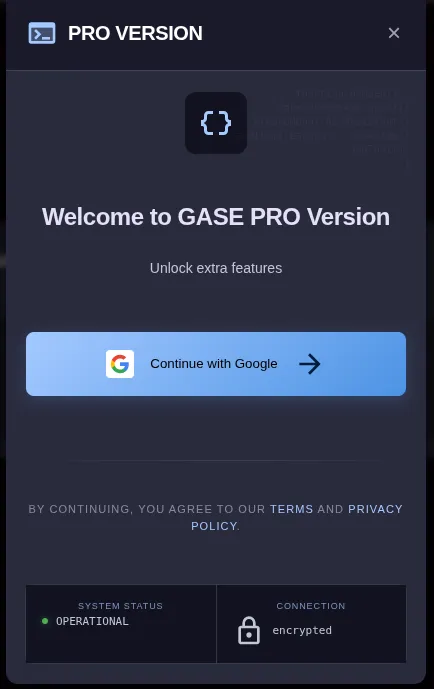
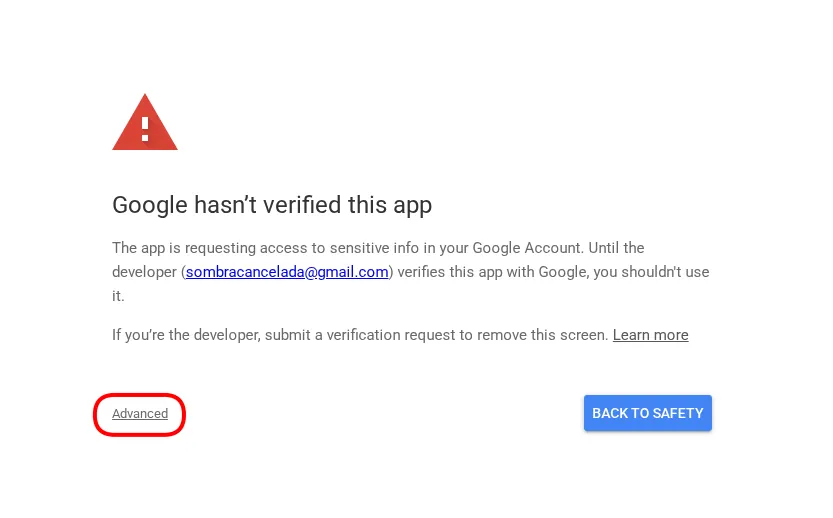
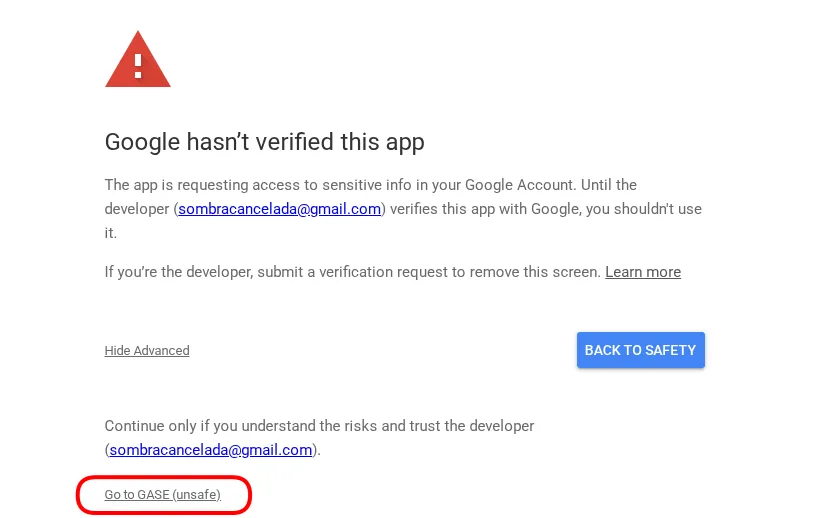
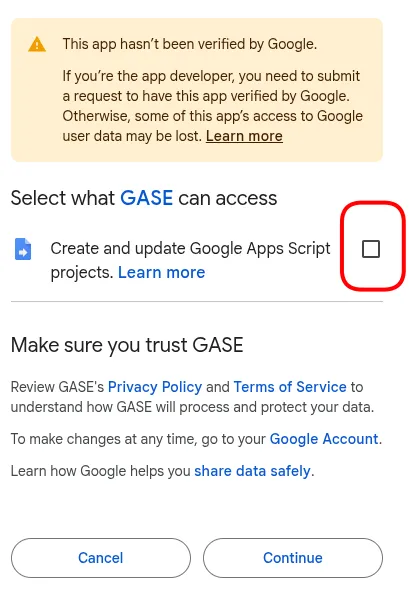
- For the Pro plan, complete your subscription through Dodo Payments. You'll get immediate access to the AI Assistant and a 15-day free trial.
First steps
When you open a Google Apps Script project with the extension installed, you'll notice several immediate changes in the editor:
- New visual theme: The editor adopts a modern dark look by default, with colors optimized for long development sessions.
- Enhanced file explorer: In the left panel you'll see a tree view with custom icons for each file (.gs, .html).
- Additional buttons: New buttons appear in the interface to access the AI assistant and extension settings.
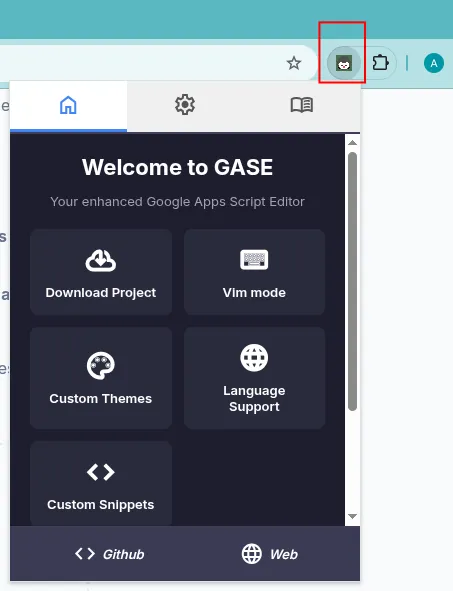
- To open the extension's main panel, click the GASE icon in the Chrome extensions bar.
Features
Drag and drop blocks
Configure and drag predefined code blocks directly into your project to accelerate your development workflowAI assistant
Write, debug, and optimize your Apps Script code instantly with an intelligent, built-in AI assistant.GitHub Integration
Sync your code natively with GitHub to manage versions and collaborate smoothly with your team.Kanban Board
Manage tasks and track project progress together with a shared Kanban board across multiple accounts.Vim Mode & Emmet
Fly through your HTML layouts and code editing using powerful Vim shortcuts and Emmet tools.Global find & replace
Locate and modify any piece of text across all your project files in a single click.One-click download
Back up your entire Google Apps Script project instantly with a single click download button.Custom themes
Personalize your development workspace with multiple modern themes designed to reduce eye strain.Languages
GASE is available in the same 5 languages as this website: Spanish, English, Simplified Chinese, Russian and French.Themes & customization
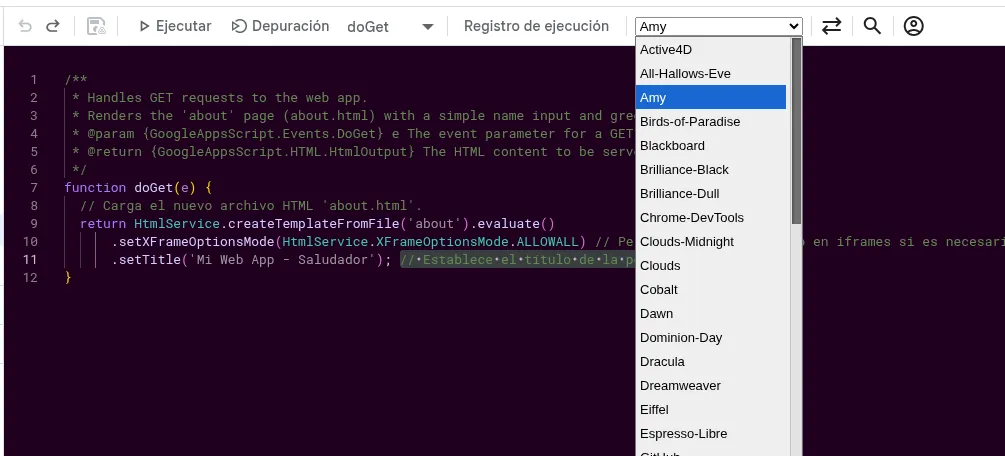
GASE includes dozens of visual themes for the Monaco editor. You can change the theme at any time and see the change applied instantly.
- Open the Google Apps Script editor
- Look for the theme selector in the top bar (it shows the current theme name)
- Select any of the available themes. The change is immediate.
AI panel position
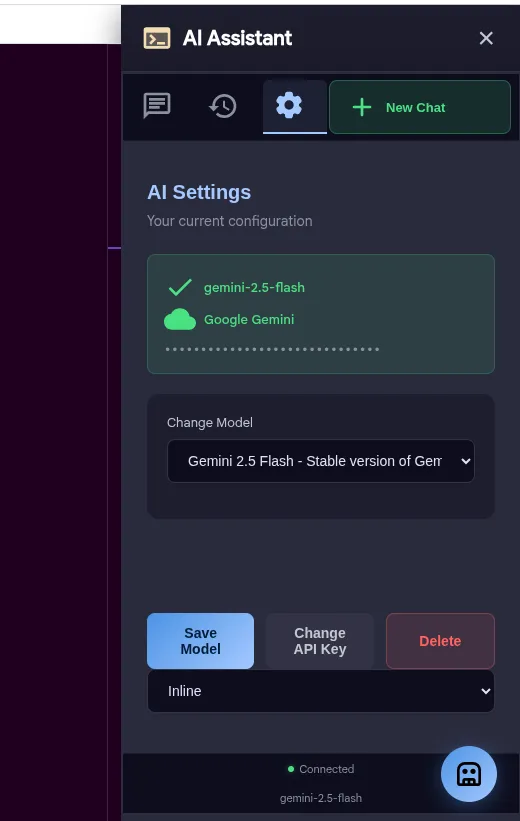
You can choose between two display modes for the AI assistant:
- Float: The chat opens as a floating window overlaid on the editor. Recommended for large screens.
- Inline: The chat is integrated as a fixed side panel to the right of the editor. Ideal for small monitors or keeping the chat always visible.
- Open the AI assistant
- Go to the Settings tab
- Find the Position selector and choose Float or Inline.
Vim mode
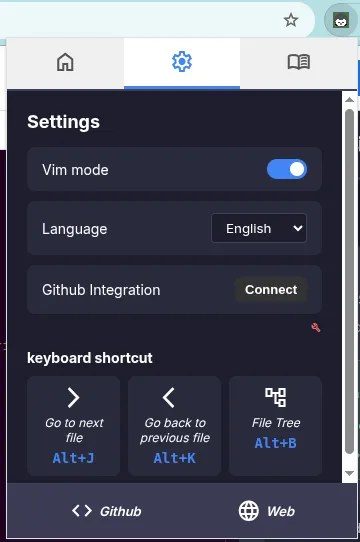
If you're used to Vim shortcuts, you can enable Vim mode in the editor. The mode is toggled from the extension popup (icon in the Chrome bar) or via a keyboard shortcut. Once enabled, the editor responds to standard Vim commands: h, j, k, l for navigation, i to insert, Esc to return to normal mode, and all the commands you already know.
File explorer
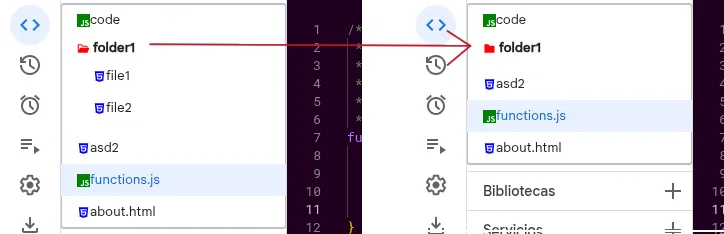
The left panel of the editor displays all your project files in a hierarchical tree. Click any file to open it directly in the editor.
- Folders: Displayed with a folder icon. Click to expand or collapse.
- .gs files: Identified with a JavaScript icon.
- .html files: Identified with an HTML icon.
Blocks
Blocks are predefined code snippets that you can configure and drag directly onto your Google Apps Script project. They work as a low-code tool: select the block you need, adjust the parameters, and insert it into your code without writing anything from scratch.
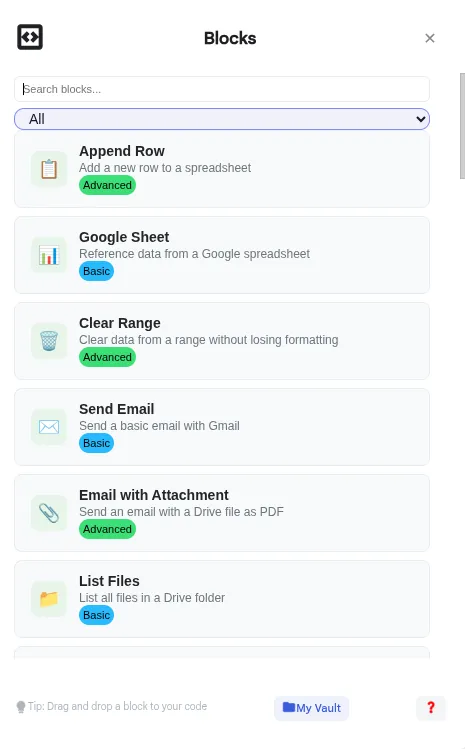
How to open the Blocks panel
- Click the Blocks button in the GASE toolbar
- A side panel will open with the list of available blocks
- Browse by category or use the search bar to find a specific block.
Available Block types
Basic (free)
Basic blocks are available to all users, including free plan users. They include common operations such as reading data from Google Sheets, sending emails with Gmail, listing Drive files, and making HTTP requests.
Advanced (Pro)
Advanced blocks require an active Pro plan or trial. They include more complex operations such as sending emails with attachments, generating PDFs from templates, creating forms, mail merge, and sending notifications to Slack, Discord, Telegram or WhatsApp.
Vault
The Vault is a personal space where you can save the blocks you use most to reuse them across projects and different devices. When you save a block to the Vault, it syncs automatically in the cloud.
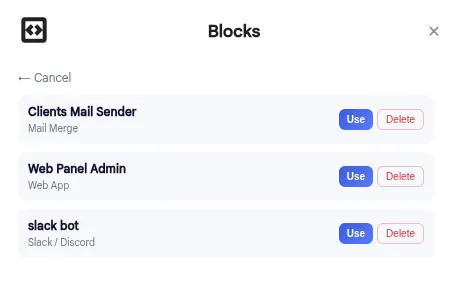
Free plan users can save up to 2 blocks in the Vault. Pro plan users have no limit and can save as many blocks as they need.
- Click the save icon (floppy disk) on the block card you want to save
- The block will be added to your personal Vault
- To access your saved blocks, go to the Vault tab inside the Blocks panel
- To remove a block from the Vault, click the trash icon.
AI Assistant
The AI assistant lets you chat with advanced language models (Gemini, DeepSeek, Claude) directly from the editor. You can ask it to write code, explain it, debug, refactor, or create new files.
Setting up the assistant for the first time
- Open the AI chat from the AI Assistant button in the editor
- If you're not authenticated, the login window will open. Sign in with your Google account
- If you don't have a Pro plan or trial, click Upgrade and activate the 15-day free trial or purchase the Pro plan
- In the Settings tab: choose the Provider (Google Gemini, DeepSeek or Anthropic Claude), enter your API Key and click Verify to validate it, select the Model and click Save.
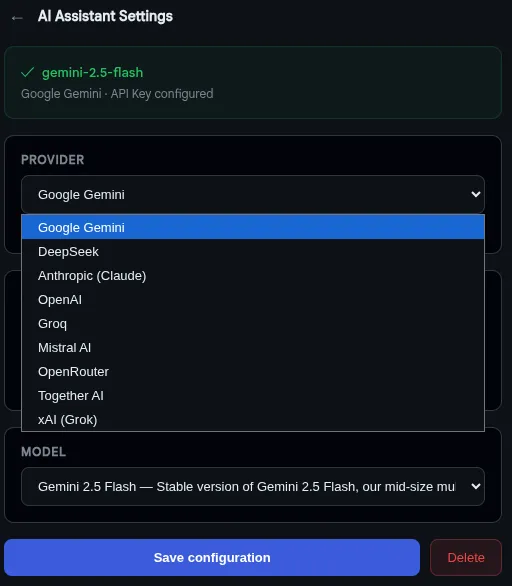
API Keys
- Google Gemini: https://aistudio.google.com/app/apikey
- DeepSeek: https://platform.deepseek.com/api_keys
- Anthropic (Claude): https://console.anthropic.com/settings/keys
Change the model without reconfiguring everything
- Go to Settings in the AI chat
- You'll see your current configuration
- Select a different model from the Change Model dropdown
- Click Save Model. The change takes effect immediately.
Change provider
- In Settings, click Change API Key
- Select the new provider from the first dropdown
- Enter the new provider's API Key
- Click Verify to validate it
- Select the desired model
- Click Save.
Using the chat
- Type your question or request in the text field
- You can mention project files by typing @ followed by the name (a dropdown will appear for selection)
- Press Enter to send
- The AI will respond with explanations and, if applicable, code.
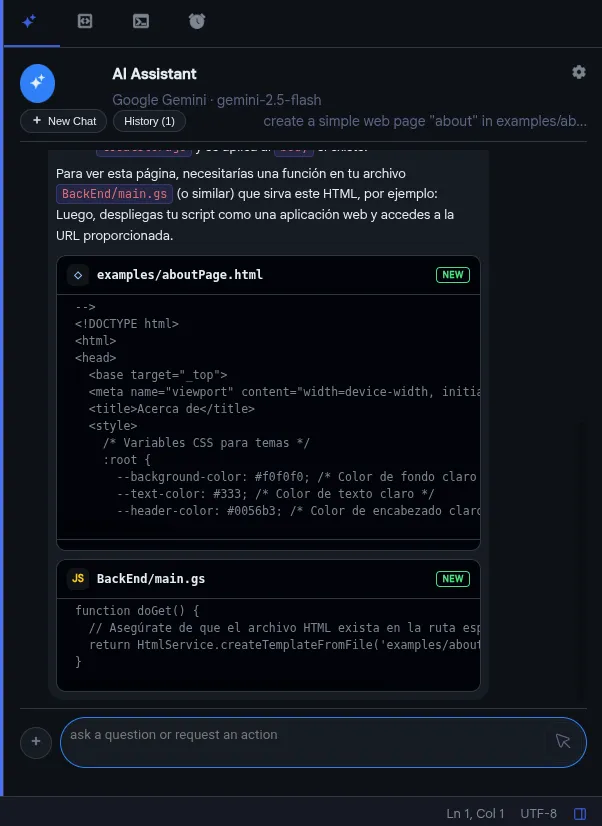
Approve or reject suggested changes
When the AI suggests changes to a file, you'll see a modification card below its response. The card shows the file name, a NEW badge if it's a new file, and a diff (green lines for additions, red for deletions). Click Approve to apply the change or Deny to reject it.
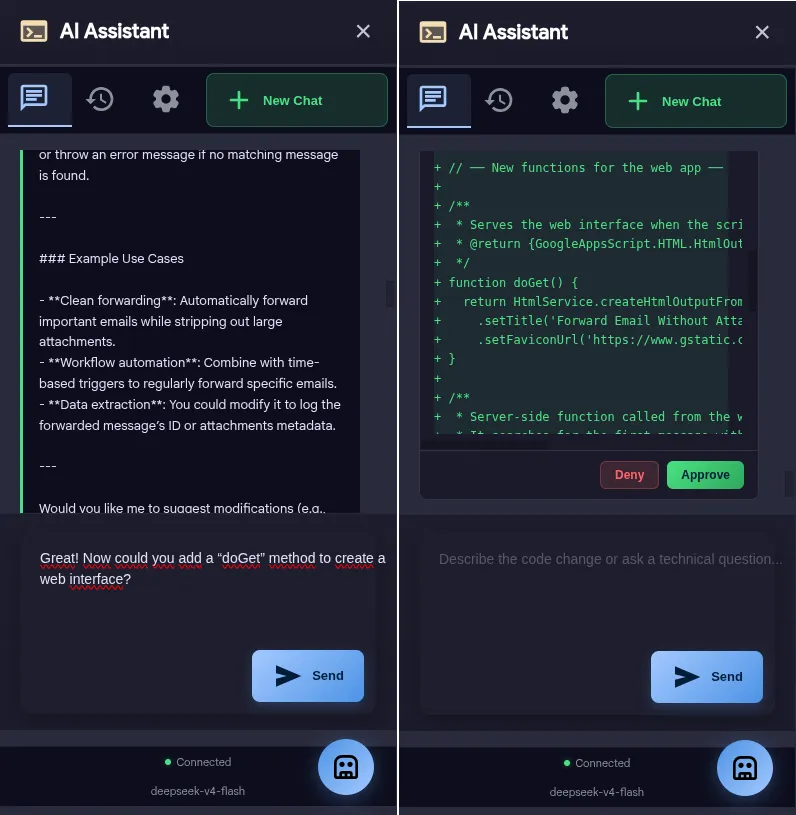
Important notes
- Files mentioned with @ are sent to the model as context. Select the relevant files to get better responses.
- The AI sees your project's full structure (file names and folders).
- You can have multiple active conversations from the History tab.
- The New Chat button (+ icon) starts a clean conversation with no history.
Pricing
GASE offers a free plan with all essential features and a Pro plan with advanced capabilities. Subscription management is handled through Dodo Payments.
Free Plan
$0
Full access to all features except the AI Assistant.
- File tree
- visual themes
- Vim keybindings
- .zip download
- compact explorer and global search.
Pro Plan
$4 USD / month
$20 USD / year (save 17%)
Includes a 15-day free trial.
All free plan features plus AI Assistant and advanced blocks.
- Everything from the free plan + LLM-powered AI chat assistant + Advanced blocks + unlimited Vault.
Plans in detail: Free, Pro and Trial
Free Plan
- All visual themes
- Vim mode
- Enhanced file explorer
- Basic blocks (up to 2 in the Vault)
Pro Plan ($4/mo or $20/yr)
- Everything from Free
- AI Assistant with Gemini, DeepSeek and Claude support
- Advanced blocks + unlimited Vault
Trial (15-day free trial)
The trial gives you access to all Pro plan features for 15 days at no cost. No credit card or payment method required.
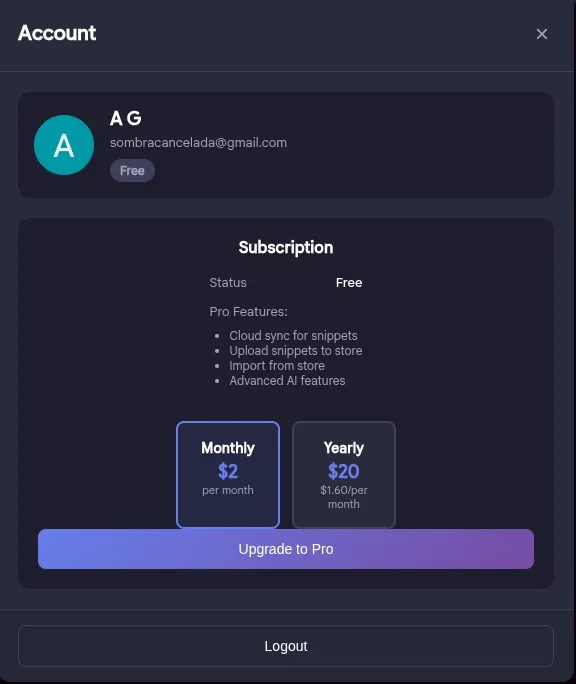
Activate the free Trial
- Open the AI assistant
- If you don't have access, click Upgrade
- The Account window will open. Click Start 15-Day Free Trial
- The trial activates instantly. You'll see a yellow Trial badge with the remaining days.
Purchase the Pro plan
- Open the Account window
- Select the plan: Monthly ($4/mo) or Yearly ($20/yr)
- Click Upgrade to Pro
- You'll be redirected to the secure Dodo Payments payment page
- Complete the payment. Your account will automatically upgrade to Pro
- You'll see a purple Pro badge on your profile.
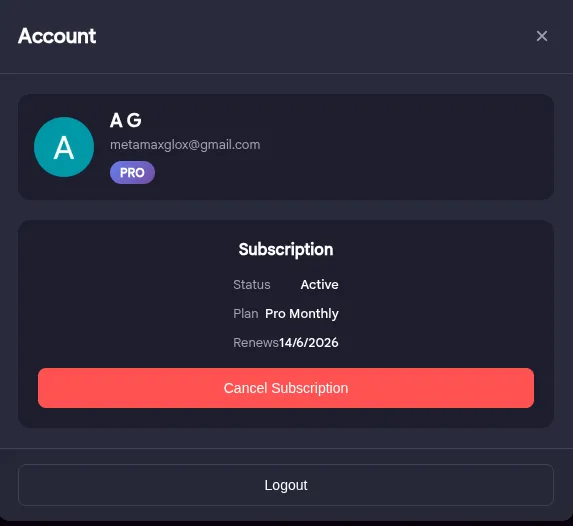
Cancel subscription
- Open the Account window
- In the subscription section, click Cancel Subscription
- Confirm the cancellation. Your Pro access will remain until the end of the current billing period.
Log out
- Open the Account window
- Click Logout at the bottom
- After logging out, you'll lose access to Pro features until you sign in again.
Keyboard shortcuts
- Navigate between project files
- Collapse/expand the file tree
- Search text across all files
- Download project as .zip
- Hide/show file explorer
- Search files by name
- Toggle Vim mode
- Open AI assistant (Pro)
Troubleshooting
The AI assistant doesn't respond
- Check your internet connection
- Make sure your API Key is valid and has available credits
- Review settings in Settings > Change API Key and verify the key again.
No files appear when typing "@"
- Make sure the project has files open in the editor
- If you just created or renamed a file, type @ again to refresh the list.
The extension doesn't load / no changes are visible
- Reload the Google Apps Script editor page
- Verify the extension is enabled in chrome://extensions
- If the problem persists, uninstall and reinstall the extension.
"requires Pro plan or active trial" error
- Sign in to GASE
- Check your plan in the Account window
- If your trial expired, purchase the Pro plan to continue using the AI assistant.
GitHub Integration
Connect your Google Apps Script project to a GitHub repository to keep your code in sync. Push local changes, pull remote changes, and manage everything from the extension without leaving the editor.
Connect to GitHub
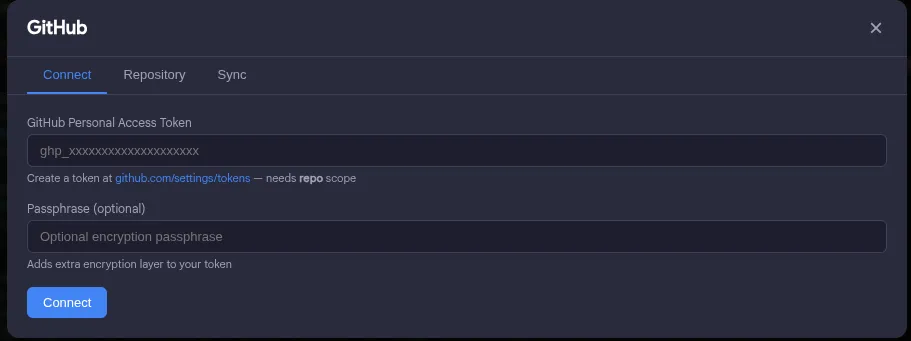
- Click the GitHub button in the GASE toolbar. A modal window with three tabs will open: Connect, Repository and Sync
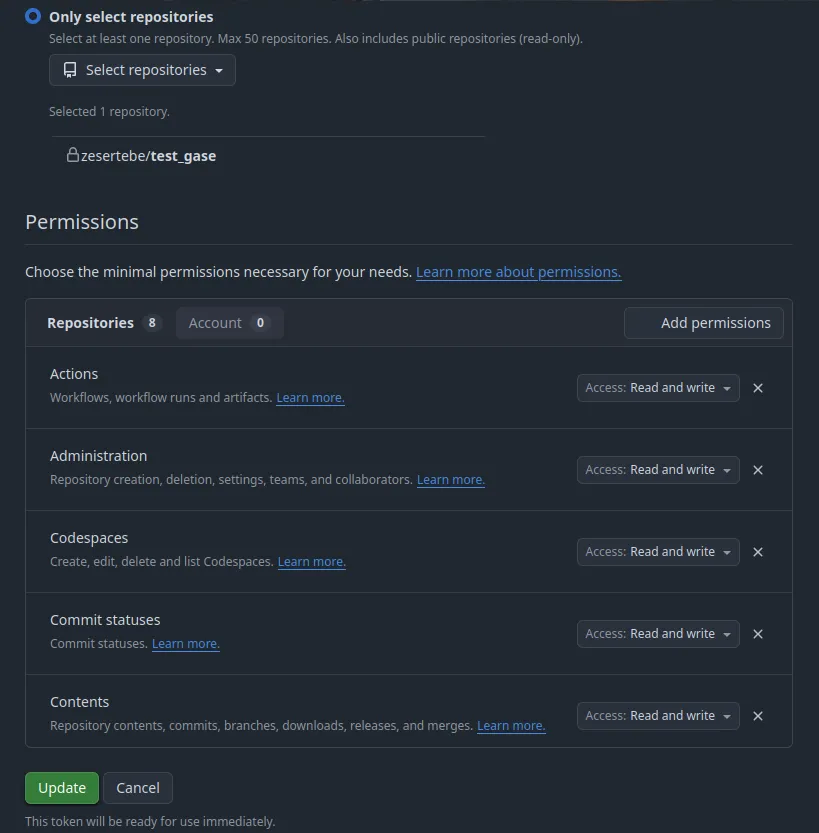
- In the Connect tab, enter your GitHub personal access token and optionally a password to protect the token (recommended for extra security). The password encrypts the token locally
- Click Connect. If the token is valid, the fields will disappear and you'll see Connected as @your_username along with a Disconnect button.
Select repository
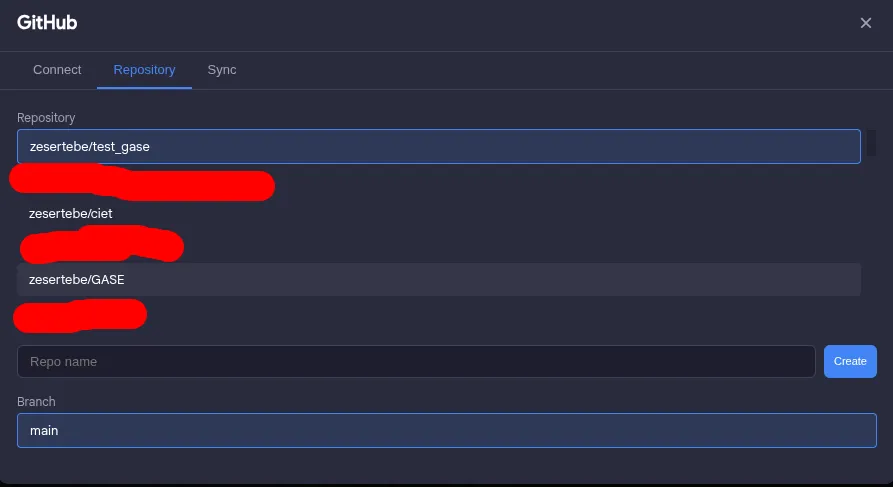
- Go to the Repository tab in the GitHub modal
- You'll see a list of your available repositories. Click on the one you want to use
- Select the branch you want to work with.
Sync changes
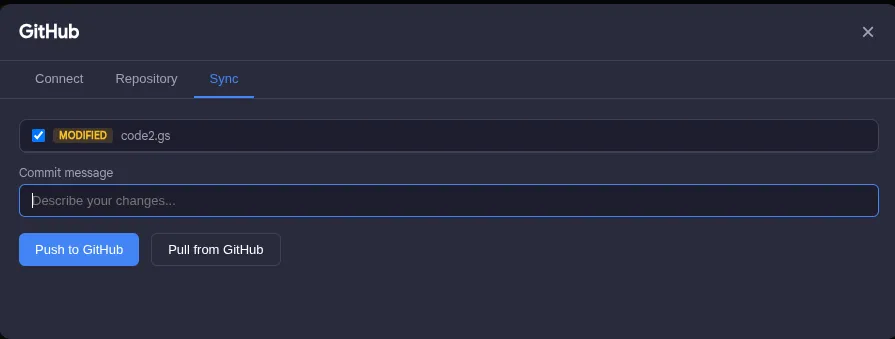
The Sync tab shows files with pending changes — both local (changes made in your Apps Script project not yet uploaded) and remote (GitHub changes not yet downloaded).
Push: Push: Upload local changes to GitHub. Files modified in your Apps Script project will be sent to the repository.
Pull: Pull: Download remote changes from GitHub. Files modified in the repository will be applied to your Apps Script project.
Additional Apps Script permission required
When pulling for the first time, you may need to enable the Google Apps Script API. If you see a message about it, open https://script.google.com/home/usersettings and make sure the Google Apps Script API is enabled. Once enabled, pull will work correctly.
Languages
GASE is available in the same 5 languages as this website: Spanish, English, Simplified Chinese, Russian and French. The language is automatically set based on your browser preferences.